Notes Markdown workspace
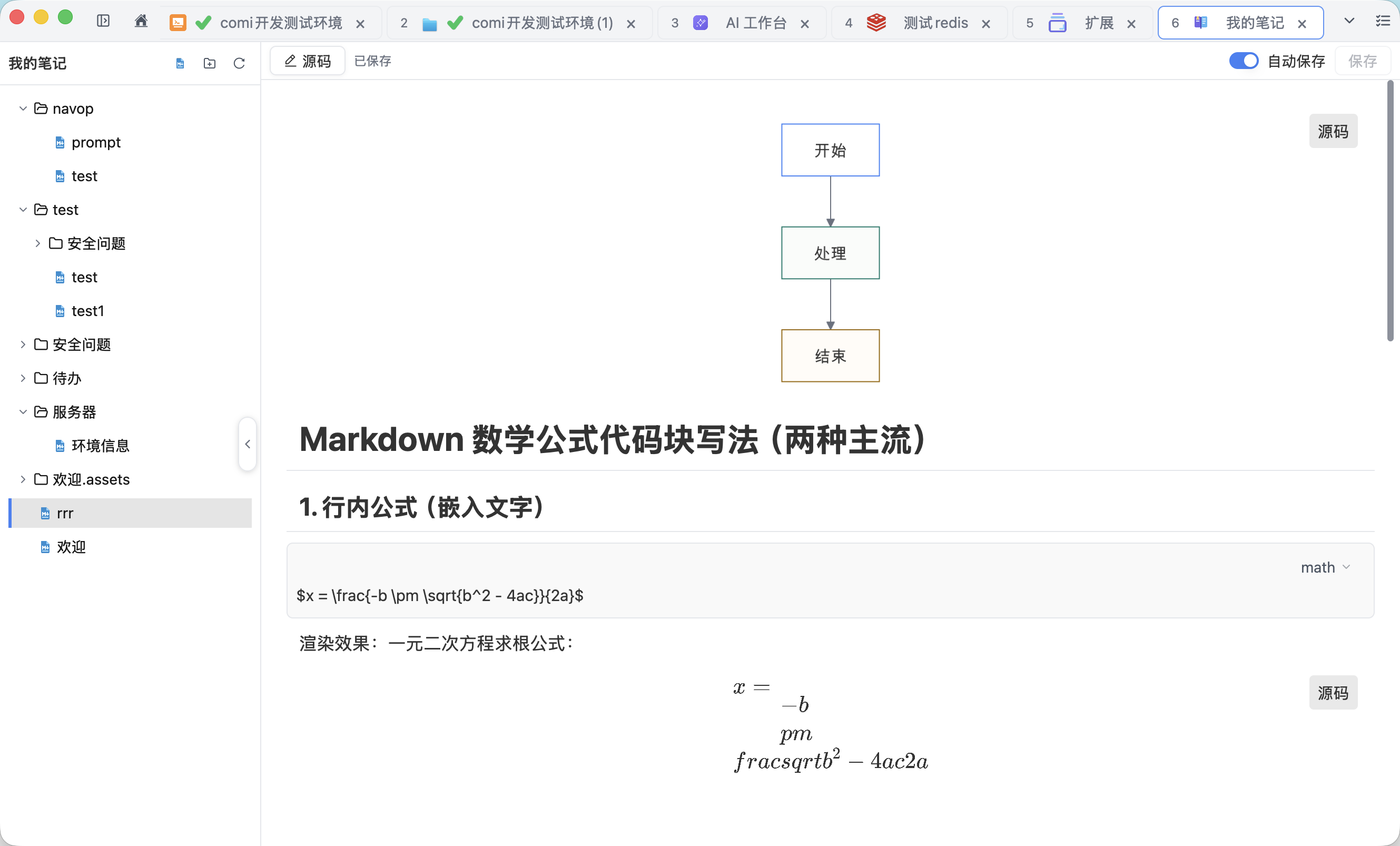
Notes opens and edits local Markdown files through two modes: a read-only preview and a source editor. Extensions add HTML, PDF, and Word export plus Mermaid and LaTeX math rendering. Whiteboards and freeform canvases are not currently available.
Open Markdown files
Choose a readable and writable local folder in Notes to browse its Markdown files. You can also use the operating-system file association to open a .md file directly in Navop.
Changing the Notes folder does not move existing files. When the folder is managed by a cloud drive, network share, or Git repository, that system remains responsible for synchronization, locking, and conflict resolution.
Preview and edit source
Markdown opens in a read-only preview by default for reading common content such as headings, lists, links, code blocks, and images. Switch to source mode when you need to edit the Markdown text and save changes.
Preview shows the rendered result; it is not a WYSIWYG editor. After editing and saving in source mode, return to preview to verify formatting and resource paths.
Images and relative paths
Relative images and other local resources resolve from the directory containing the current Markdown file. Recheck references after moving, renaming, or deleting a Markdown file or one of its resources.
After pasting external content, inspect the generated Markdown, HTML fragments, and external links so that tracking URLs, sensitive information, or short-lived resources are not included unintentionally.
Save and handle external changes
Observe unsaved-change prompts before closing a file and save important edits explicitly. If another editor, Git operation, or cloud-sync process changes the same file, compare the versions before reloading or overwriting.
Navop does not choose the correct side of a conflict and does not replace Git history or another backup system. Back up the Notes folder regularly and inspect the actual diff before committing or sharing a document.
Security reminder
Do not store database passwords, SSH private keys, master keys, tokens, or other plaintext credentials in Markdown notes. Before sharing, redact connection names, internal addresses, query results, logs, screenshots, and personal information.