Native resource workbench
The native resource workbench is a class of native UI that Navop provides to extensions. An extension declares resources, collections, tables, detail pages, and operations in its manifest, and the host renders a browsable, actionable workbench with native GPUI — the extension does not ship its own UI. The Docker extension is the first to ship with this mechanism.
How it differs from regular connection extensions
- A regular connection extension usually provides only a connection form and one custom page.
- The host renders navigation, collection tables, detail pages, and action buttons for a resource workbench; the extension only declares data paths and operation methods. Appearance, sorting, paging, and interaction therefore follow the Navop theme and design system.
- Operations are classified by effect as read, write, or destructive; destructive operations show a confirmation before they run.
Docker workbench
After installing the Docker extension, create a Docker connection and provide the local socket (default unix://~/.docker/run/docker.sock, or unix:///var/run/docker.sock). The workbench provides:
- Engine overview: containers, images, disk, and runtime resource usage.
- Containers: list, start, stop, restart, and remove, plus process and filesystem change views.
- Images: image list and asynchronous pulls.
- Logs: container log viewer with tail-line control.
- Terminal: an exec terminal into the container.
Removing containers or stopping running services affects a real environment — confirm the target and impact before running these operations.
Permissions and automation
Workbench operations run through the extension provider process and are constrained by the permissions the extension declares (for example, access to docker.sock). On automation channels such as Public MCP, only read operations are exposed by default; write and destructive operations still require human confirmation and are never silently allowed.
Troubleshooting order
- Confirm the Docker daemon is running and the socket path is correct.
- If the connection fails, check that the current user can access
docker.sock. - If action buttons stop responding, check whether the extension provider process is alive; after a crash the host restarts it and tries to restore the connection.
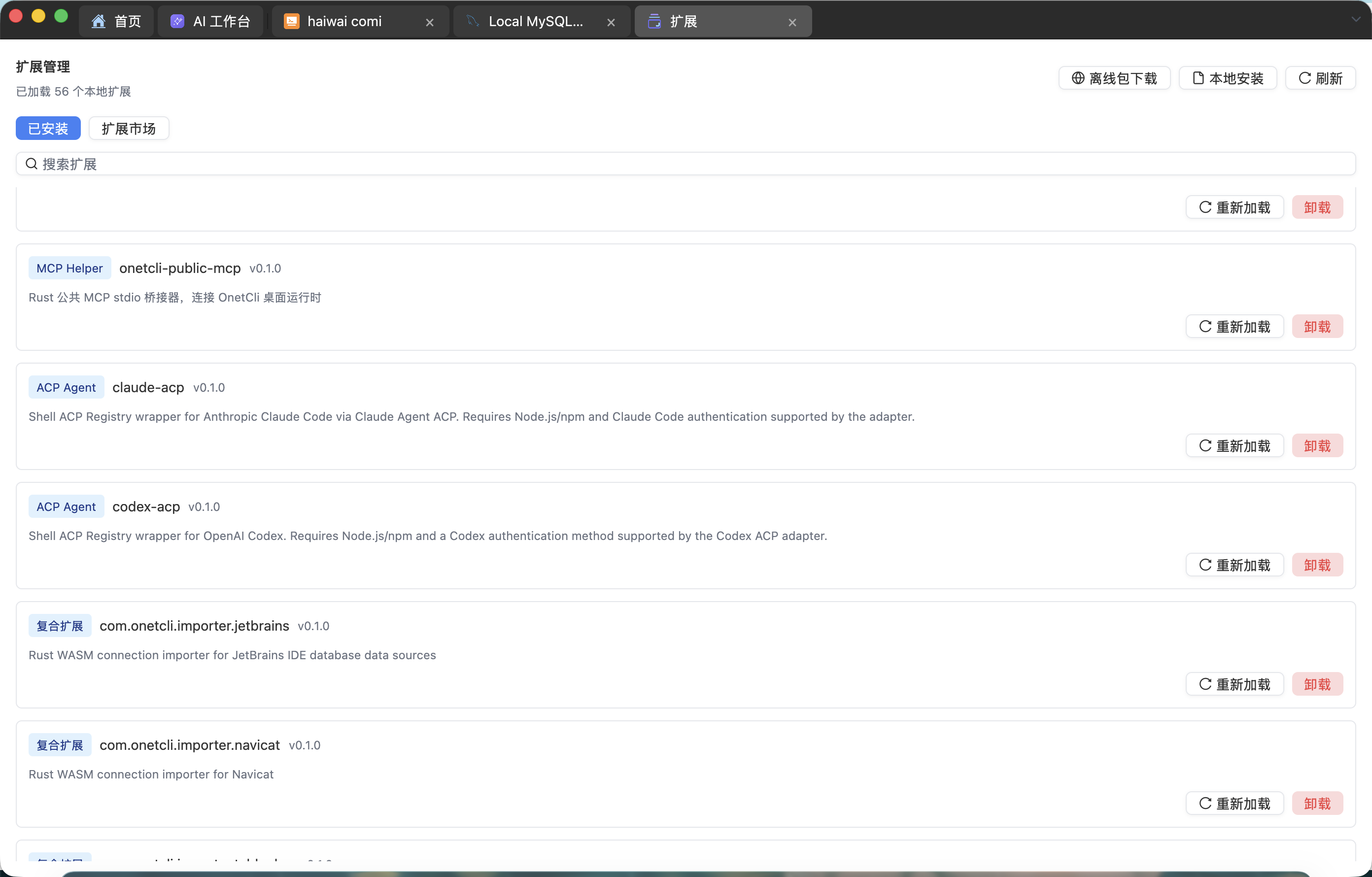
- A single broken extension does not affect others; reload it on the extension management page or reinstall it.