
SSH and terminal workspaces
Navop combines remote SSH and local Terminal sessions with tabs, splits, broadcast input, history, quick commands, highlighting, and shell integration. Every command acts on the current local machine or remote server, so keep the host and identity visible.
Create SSH and local profiles
SSH authentication supports passwords, private-key files, inline private-key content, SSH Agent, and default ~/.ssh configuration. Interactive servers may request MFA. Configure proxy and timeout when necessary, and verify the host fingerprint on first connection.
The SSH connection's Advanced Settings include an "Allow Legacy SSH Algorithms" compatibility option (off by default). Enable it per connection only when a server supports only older algorithms such as DSA host keys, SHA-1 key exchange/MAC, or 1024-bit DH group negotiation; Windows also supports Pageant authentication. Enabling it lowers cryptographic strength, so do not keep it on for servers that can be upgraded.
A key credential can be marked "Forward this key through ssh-agent", and the connection's Advanced Settings also carry an "SSH Agent Forwarding" (ForwardAgent) switch. With the local ssh-agent forwarded to the remote host, that host (a jump host, for example) can authenticate onward to deeper hosts with your local key; the setting applies to newly opened terminal sessions, so reconnect existing ones.
Local profiles include the system shell, PowerShell, CMD, WSL, Git Bash, or a custom program. Select the profile when opening a terminal; unavailable platform-specific choices are hidden. Use trusted executables and safely parsed arguments, and do not place passwords in command-line parameters.
The terminal AI sidebar works with both SSH and local sessions and uses the active terminal as its default resource context. Verify the shell, operating system, host, and current directory before running generated commands; local PowerShell, custom programs, and remote Linux shells are not interchangeable.
Manage known hosts
The Known Hosts page lists every SSH host trusted by Navop with its host/port, route (direct, proxy, jump), key algorithm, and SHA-256 fingerprint, sorted by most recent use. The toolbar provides:
- Scan System: imports plain-text entries from the system OpenSSH
known_hostsfile (hashed names, wildcards, CAs, and revoked entries are skipped); already-trusted hosts are never overwritten. - Copy host identity: copies the full identity (host:port + route) to the clipboard for diagnostics or shared confirmation.
- Remove trusted host: deletes the host key from the app trust store; the next connection asks for host-key confirmation again.
After removing a trust record, reconnect and confirm to restore trust if the server key is unchanged. Host-key change warnings continue to rely on the fingerprint comparison shown at connect time.
Agent Hub: code, resources, and Git
Agent Hub brings the terminal Agent, project file tree, Git branches, change list, and side-by-side diff into one workspace, keeping coding, resource navigation, and version control in context beside Navop's local terminals, SSH sessions, and connections.
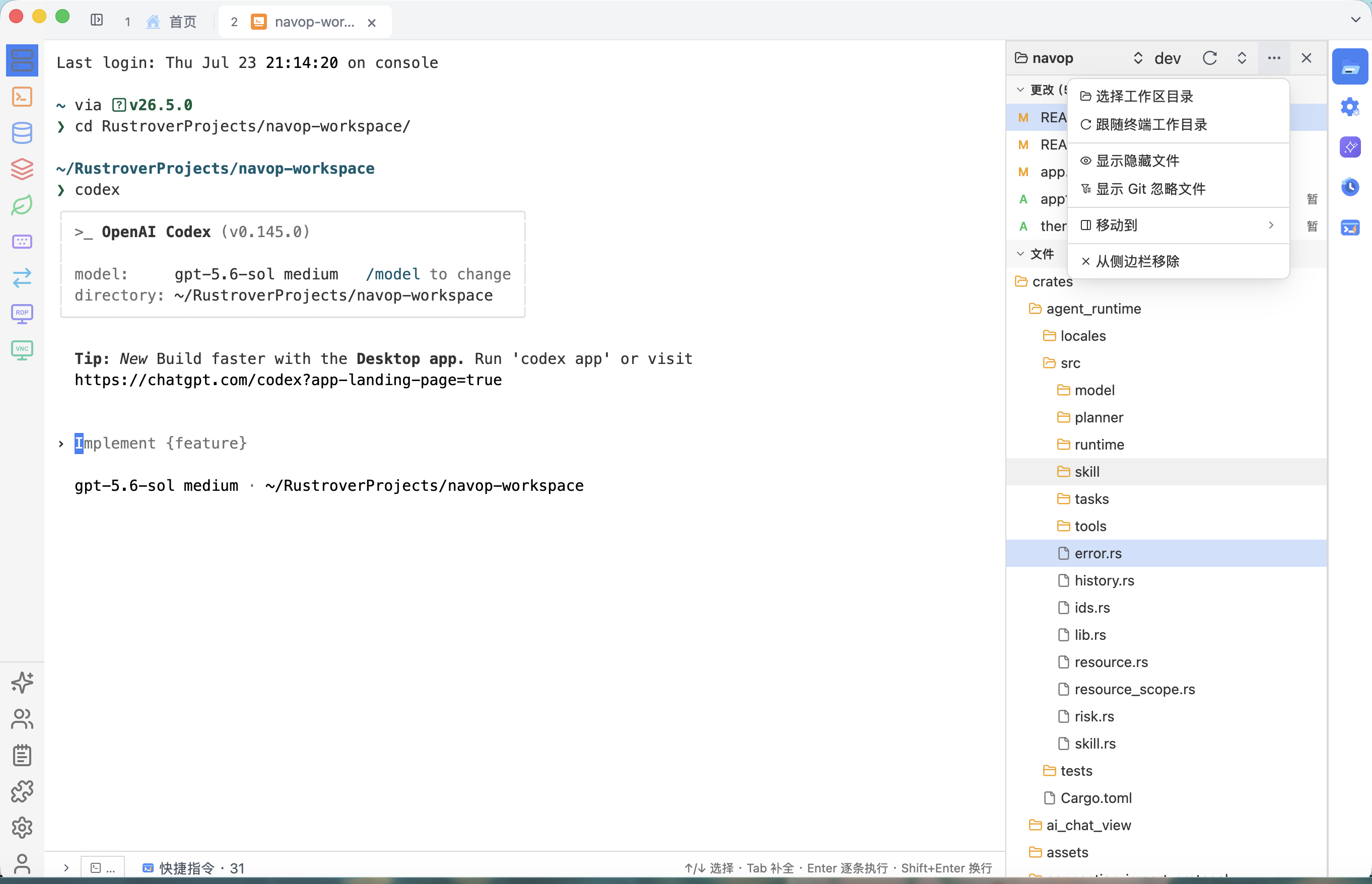
- Select a workspace directory explicitly or follow the terminal working directory, with separate controls for hidden and Git-ignored files.
- Search, create, fetch, push, and switch local or remote branches without leaving the workspace.
- After an Agent edits the project, jump to changed files and compare the working copy with HEAD before committing.
Save or stage work before switching branches, and verify the target and its tracking relationship. Before moving, deleting, or editing files, confirm whether the explorer represents a local directory or a remote session. Agent-generated changes still require diff review, formatting, checks, and tests.
X11 forwarding: three prerequisites
An SSH connection can enable X11 forwarding so remote X11 applications render through a local X server. Enabling it requires three elements, all of which are necessary:
- The server has X11 enabled — the remote SSH service must allow X11 Forwarding and support
xauth(MIT-MAGIC-COOKIE-1); restartsshdafter changingsshd_config. - An X11 server is installed on the client — your machine needs a running X server: XMing on Windows, XQuartz on macOS.
- XMing: https://sourceforge.net/projects/xming
- XQuartz: https://www.xquartz.org, or install it with Homebrew:
brew install --cask xquartz - After installing XQuartz on macOS, run
xhost +local:to grant local access.
- X11 is checked in session details — enable the "X11 forwarding" option in the SSH connection settings; it applies to newly opened terminal sessions.
Navop auto-detects the local X server: it probes 127.0.0.1:6000 on Windows, and on macOS it resolves DISPLAY, launchctl, and Xauthority in turn. If XQuartz is not detected on macOS, checking the box or testing the connection prompts you to install and start XQuartz; when no usable X11 environment is available, Navop disables forwarding without blocking the regular SSH terminal.
v0.9.3 improves detection of older XQuartz environments, sockets, and authentication data on Intel Macs. If forwarding still fails, verify that XQuartz is running, reconnect the SSH session, and then check the remote sshd configuration and account permissions.
Arrange tabs and splits
Split a terminal Left, Right, Top, or Bottom, drag tabs between panes, and resize the layout. Splits are useful for logs, commands, and environment comparisons. Before closing a pane, check for foreground jobs, editors, or unfinished processes.
After reconnecting, verify process state and directory. Long-running work should use server-side session management rather than assuming a GUI tab preserves it.
Lock sessions and read status
Sessions can be locked with a password kept only in memory, including locking all sessions at once or hiding the output of the current session. A locked terminal rejects keystrokes and cannot be closed with the close button. SecureCRT-style status badges on tabs show connected, disconnected, and connected-and-locked states with tooltips.
Locking is local session protection and does not replace remote account permissions. Decide whether to hide output before stepping away, and follow organizational security policy.
Use broadcast and paste protection
Broadcast input targets only selected open SSH terminals. Verify every host, user, and current directory; send a harmless pwd first. One mistaken command can otherwise affect every selected server.
Multiline paste outside bracketed-paste mode and high-risk commands trigger confirmation. Right- or middle-click paste and selection copy are configurable. Review clipboard text containing newlines, pipes, redirection, or deletion in a text editor first.
Reuse commands and highlighting
History groups recent, frequent, and favorite commands. Quick commands have names, descriptions, commands, groups, colors, pinning, search, and copy/paste actions; the quick-command editor also offers an "execute on click" option that runs a command immediately on click. The suggestion-popup toggle can be adjusted independently in terminal settings. Deleting a group does not delete its commands, but review organization after changes.
Custom regular-expression highlighting and presets can emphasize errors or identifiers. Highlighting is visual only and does not prove command success.
Integrate shell and files
Shell integration can synchronize the SSH current directory with the file manager. Runtime SSH shell integration senses prompts, command start/end, and the current directory in real time without writing to the remote host, laying the groundwork for automation and script hints. Compatibility depends on the remote shell and initialization; do not fabricate path state when synchronization fails. The terminal shows connection status and auth prompts inline instead of interrupting with popups. Clipboard images can be uploaded to SSH and their path inserted into the terminal; confirm destination, permissions, and sensitivity before upload.
Server monitoring deployment and privacy are covered in the remote-access chapter.
Telnet connections
Navop also supports Telnet connections with automatic login scripts, manual credential overrides, and a configurable backspace code for older devices. Telnet transmits credentials in cleartext by default, so prefer SSH in production environments.